All guides
GuidesStart here
Open your books
The ways to open your dashboard on the Tally computer, what the connection screen tells you, and how Extolly keeps running beside the clock.
3 minute read
Three ways to open the dashboard
All three open the same dashboard, on the computer that runs Tally.
| How | When to use it |
|---|---|
| The Extolly for Tally shortcut on the desktop or in the Start menu | Every day. Opens the dashboard in Extolly's own window. |
| The icon beside the clock | When Extolly is already running. Click it, or right-click and choose Open Extolly for Tally. |
A browser, at localhost:4319 | If you prefer a browser tab. Right-click the icon beside the clock and choose Open in your browser, or type the address yourself. |
Extolly keeps running when you close it
Closing the window does not stop Extolly. It stays beside the clock and keeps checking Tally, so the figures are current the next time you look.
Right-click the icon beside the clock for its menu:
- Open Extolly for Tally
- Open in your browser
- Check Tally now
- Quit, which stops Extolly completely until you open it again
The Tally connection screen
In the dashboard, choose Tally connection (at the foot of the rail on a wide screen, or under the menu button at the top right on a narrow one). This is Extolly's own status screen.
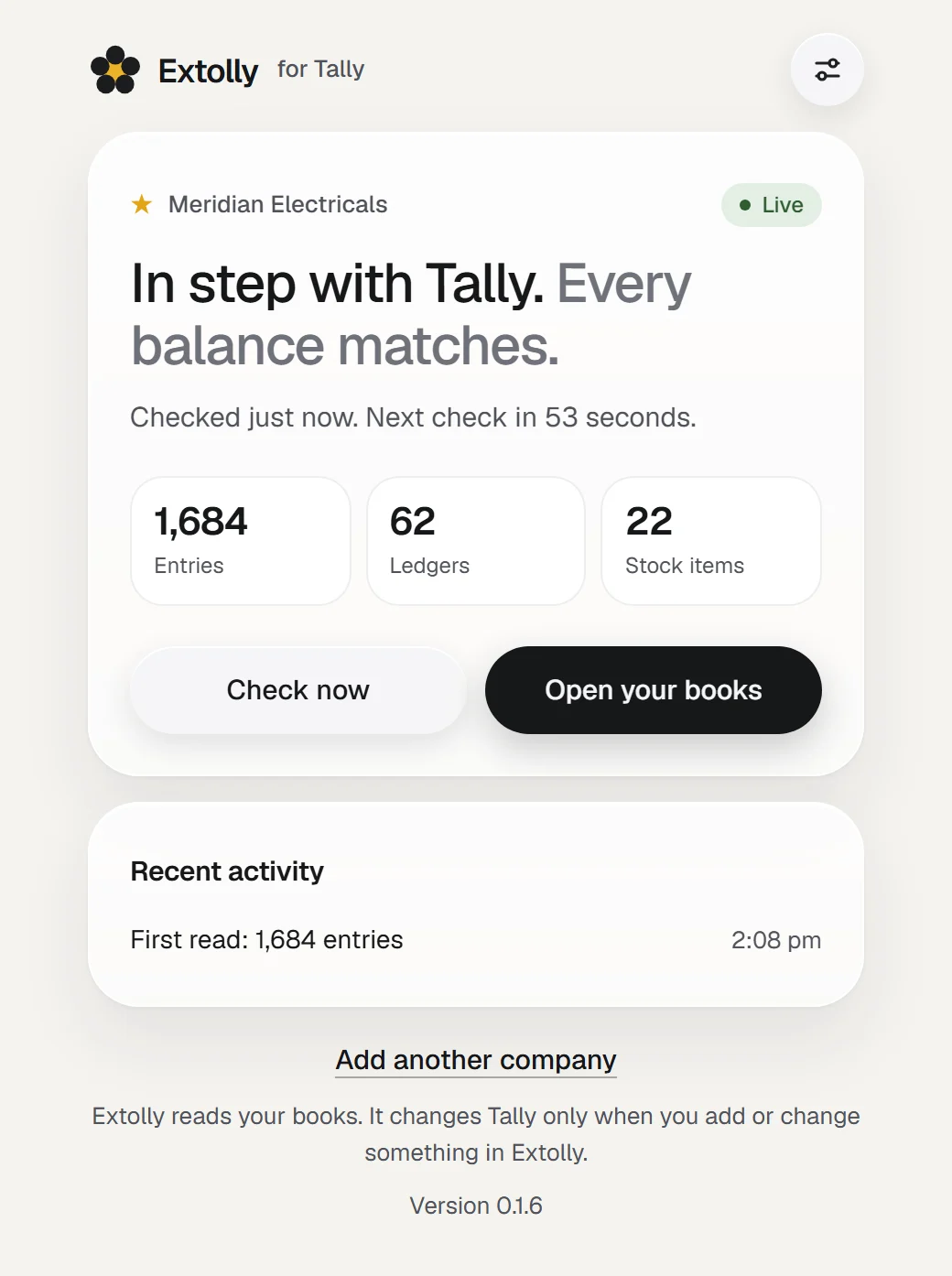
It shows:
- The company and a tag: Live, Reading, Paused, Stopped or Check needed.
- One line saying how things stand, for example In step with Tally. Every balance matches.
- When Tally was last checked and when the next check is.
- How many entries, ledgers and stock items have been read.
- Recent activity: what changed in Tally and when it was picked up.
Two buttons: Check now reads Tally straight away, and Open your books goes back to the dashboard.
With more than one company set up, a row of chips at the top lets you look at each one. A coloured dot on each chip shows how it stands.
What the tags mean
| Tag | Meaning |
|---|---|
| Live | In step with Tally. Every balance matches. |
| Reading | Reading changes from Tally. This usually takes a moment. |
| Paused | Tally is closed, or the company is not open in Tally. Syncing resumes when it is. Your dashboard shows your books as of the last read. |
| Stopped | The last check did not finish. It is tried again by itself. The reason is shown. |
| Check needed | Synced, but some balances differ from Tally. See Data health. |
From your phone
Not yet. Today the dashboard opens only on the Tally computer. See Extolly on your phone for what is coming.
Next
Find your way around is a two-minute tour of the dashboard.
Still stuck? Write to support@extolly.com and say which step you are on.