All guides
GuidesBilling
Make a sales bill
Customer, items, GST, extras and sending, step by step. Including new customers and items, cash sales, proformas and drafts.
6 minute read
Start a bill
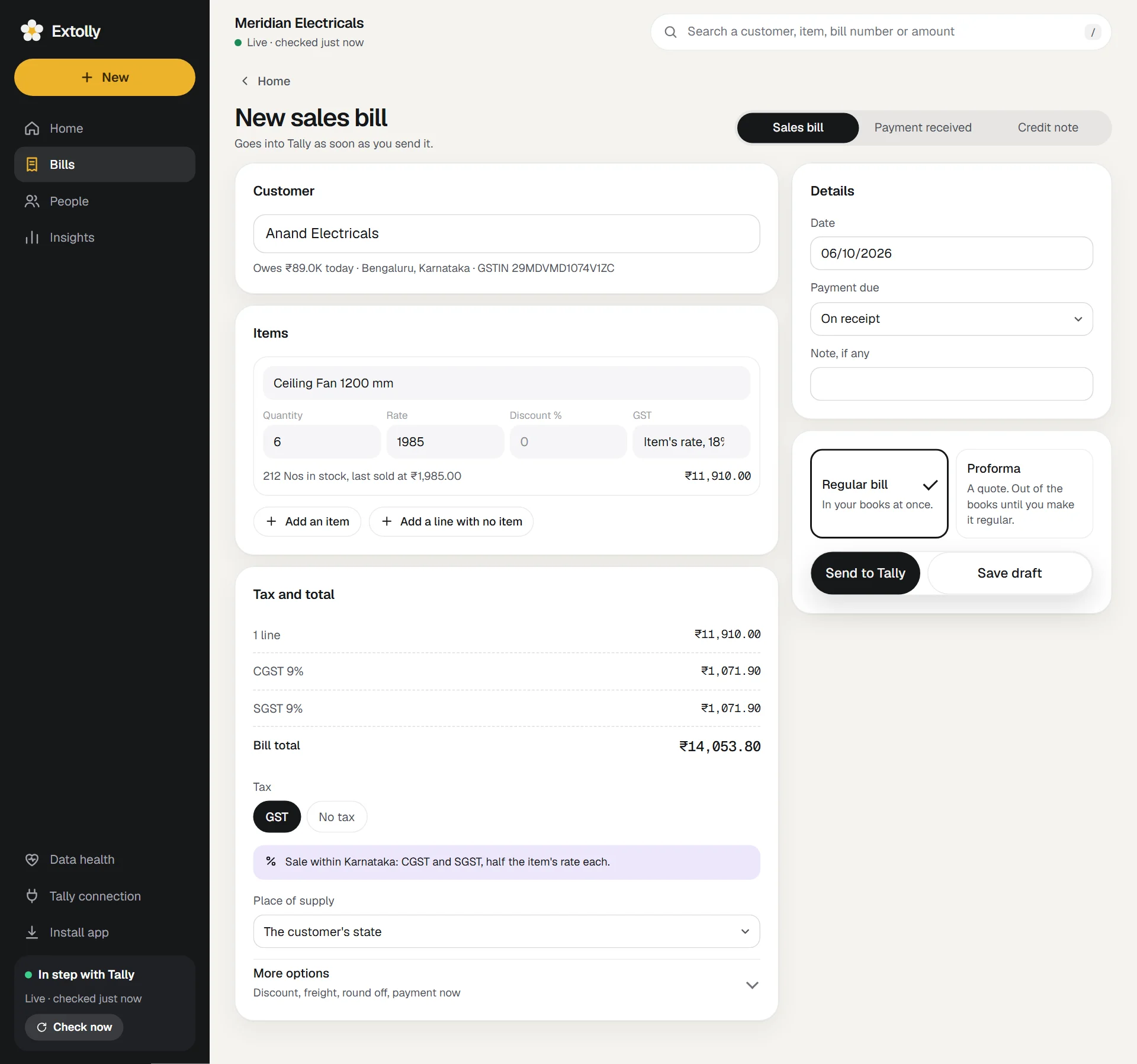
Press New, then Sales bill. The page is headed New sales bill, with "Goes into Tally as soon as you send it." under it.
1. Choose the customer
- Type in Search your customers. Matches appear with their city and what they owe.
- Press the customer.
Under the box you now see what they owe today, their city and state, and their GSTIN.
A new customer. Type the name and choose Add "name" as a new customer at the end of the list. Four boxes appear: City, State, Phone and GSTIN, if registered. The customer is added to Tally along with the bill.
A cash sale. Choose Cash sale, no customer. No customer is named and the money goes straight to cash.
2. Add the items
- Type in Search your items and press the item. Its rate is filled in with what it last sold for.
- Enter the Quantity. Change the Rate or add a Discount % if you need to.
- Press Add an item for the next line.
Under each line Extolly shows how many are in stock and the last selling rate. If you bill more than there is, it warns you in colour (Only 4 in stock) but still lets you send the bill.
A new item. Type the name and choose Add "name" as a new item. Choose its Unit and Category from the ones already in Tally, and give its HSN code and GST rate if you know them. The item is added to Tally with the bill.
A charge with no item, such as installation or a service: press Add a line with no item, choose the income ledger, say what it is for, and enter the amount.
3. Check the tax and total
The Tax and total card adds everything up as you go: the lines, each tax, rounding and the Bill total.
With GST chosen, a note says which tax applies and why:
| The sale is | Tax charged |
|---|---|
| To a customer in your own state | CGST and SGST, half the item's rate each |
| To a customer in another state | IGST at each item's full rate |
| A cash sale | CGST and SGST, half the item's rate each |
- The state comes from the customer's state in Tally. To override it, change Place of supply.
- The rate for each line is the item's own GST rate. If the item has none, Extolly uses the rate your business most often charges. You can change the rate on any line with its GST box.
- Choose No tax to send the bill with none.
4. More options
Open More options for:
- Discount on the whole bill, booked to a discount ledger in Tally.
- Add freight or another charge, such as delivery or packing.
- Round to the nearest rupee.
- Payment received now: records money taken with the bill, in full or in part, and where it was received. It goes into Tally as a receipt set against this bill.
Each option appears only when Tally has a ledger for it.
5. Details
- Date starts on today.
- Payment due: On receipt, or in 7, 15, 30, 45, 60 or 90 days.
- Note, if any becomes the narration in Tally.
6. Regular or proforma
| Choice | Meaning |
|---|---|
| Regular bill | In your books at once |
| Proforma | A quote. It goes into Tally as an optional entry and stays out of your books until you make it regular |
Extolly remembers which you chose last.
7. Send
Press Send to Tally.
A moment later a small message tells you what happened:
- In Tally: the bill is in your books. Extolly opens it.
- Proforma saved in Tally.
- Saved. It goes into Tally in a moment.: it is on its way.
- Tally refused it. Open it from Bills to see why.: see When a bill is waiting or refused.
Each bill made in Extolly carries a reference of its own, starting at EX-0001, so the same bill can never go into Tally twice. Tally gives it a bill number in the usual way.
If Tally is closed
The button reads Save, send when Tally opens. The bill is kept, marked as waiting, and goes in by itself when Tally is next open.
Not ready to send
Press Save draft. The bill is kept in Extolly, unfinished if need be, and appears at the top of Bills until you finish it or discard it.
If you leave a bill half written without saving, Extolly keeps what you typed for 12 hours on that computer and offers to carry on from where you left off.
After sending
From the bill you can Print or save PDF, Record payment, or under ... choose Make another like it to start a new bill with the same customer and items.
If something stops you
Extolly says what is missing in red above the buttons. For example:
- "Choose a customer from your Tally customers, add a new one, or make it a cash sale."
- "Add at least one line."
- "That date is before your books begin in Tally."
Limits
A bill can have up to 60 lines and 8 extra charges. The godown for each line is chosen by Extolly: the one that holds most of that item. Extolly does not generate e-invoices or e-way bills.
Still stuck? Write to support@extolly.com and say which step you are on.