All guides
GuidesYour books
Bills: every entry in your books
Find any entry, filter by kind, open one to see what it posted, and print a sales bill or save it as a PDF.
4 minute read
The day book
Bills lists every entry in your books for the chosen period, newest first, grouped by month. It is not only sales bills: purchases, receipts, payments, notes, journals and orders are all here.
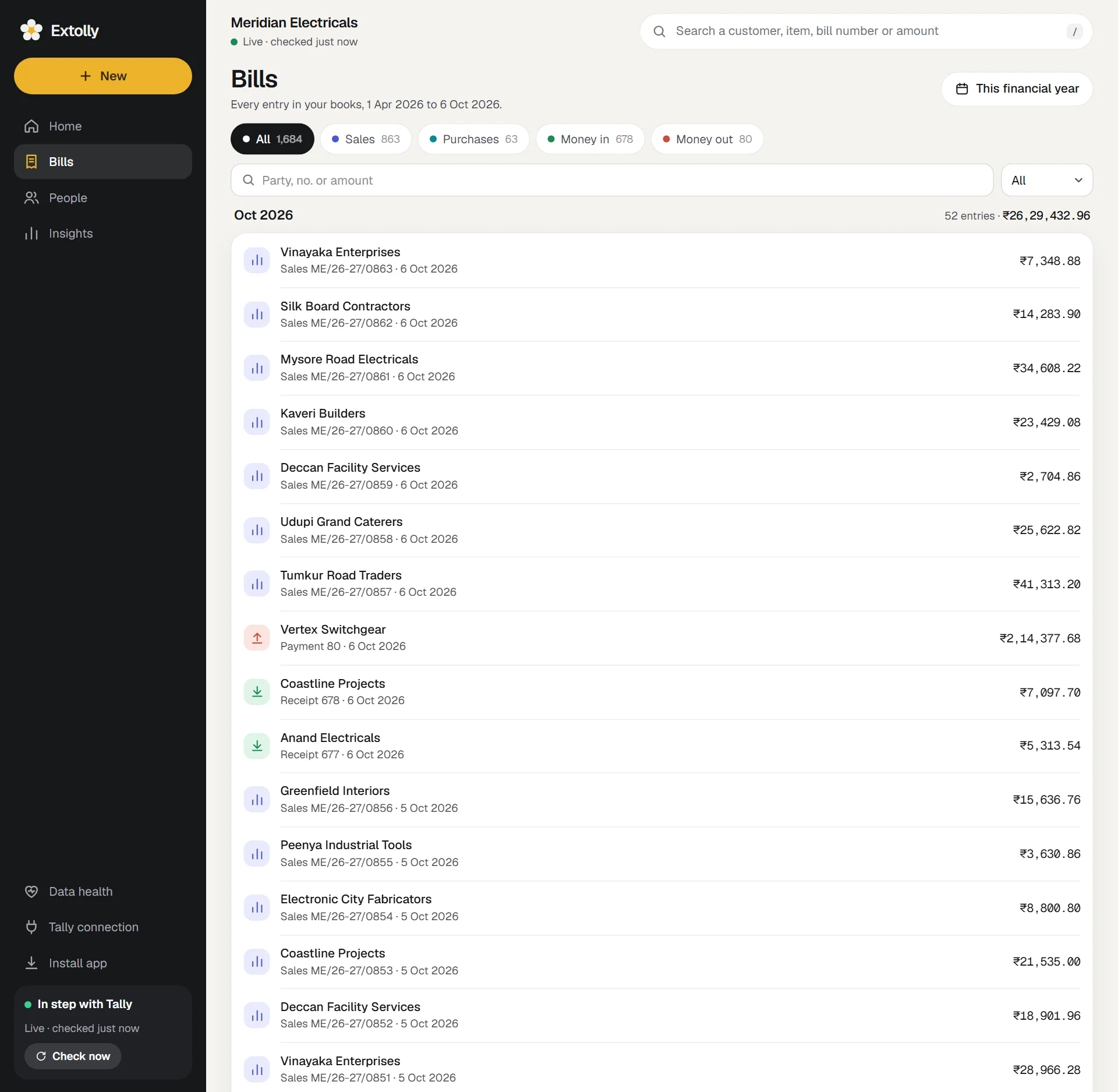
Each month has a heading with a summary: how many entries, how many are proformas or cancelled, and the month's total. Proformas and cancelled entries are left out of the total.
Each row shows the party, the entry type and number, the date, the reference, and the amount. A Proforma or Cancelled tag appears where it applies.
Narrow it down
By kind. The chips above the list each show a count.
| Chip | What it holds |
|---|---|
| All | Everything |
| Sales | Sales bills |
| Purchases | Purchase bills |
| Money in | Receipts |
| Money out | Payments |
| Returns | Credit notes and debit notes |
| Orders and challans | Sales and purchase orders, delivery notes, receipt notes, rejections |
| Journals and others | Journals, contras, stock journals and anything else |
By words. The search box takes a party's name, an entry number, a reference, words from the narration, or an exact amount. The list updates as you type.
By status. The dropdown offers All, Regular, Proforma and Cancelled.
By date. Use the period picker at the top.
The list shows 60 rows to begin with. Press Show more at the bottom for the next hundred.
Things waiting at the top
If you made something in Extolly that has not reached Tally, it appears as a banner above the list: a draft, a bill waiting for Tally, or one Tally refused. Press it to see what happened. See When a bill is waiting or refused.
Open an entry
Press any row.
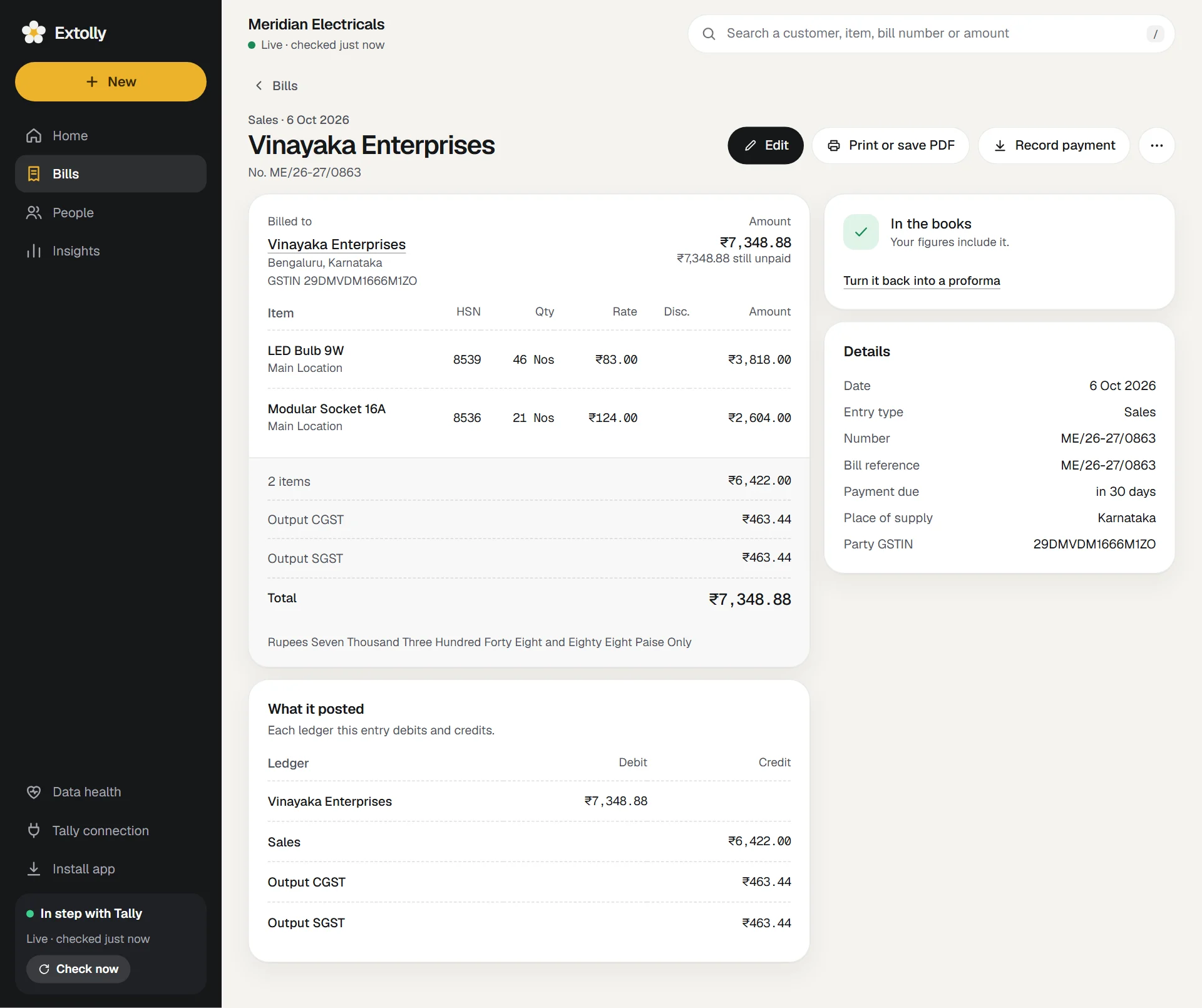
On the left:
- Billed to or Bought from, with the party's city, state and GSTIN, and the amount. For a bill Tally tracks, it says how much is still unpaid or Paid in full.
- The items, with quantity, rate, discount and amount.
- The totals: items, extra charges, each tax, rounding, the total, and the amount in words.
- What it posted: each ledger this entry debits and credits. This is the entry exactly as Tally holds it.
On the right:
- A status card: In the books, Proforma or Cancelled.
- Details: date, entry type, number, reference, payment due, place of supply, party GSTIN and narration.
- For receipts, payments and notes, Settles lists the bills the entry is set against.
What you can do from an entry
| Button | When it appears |
|---|---|
| Edit | Sales and purchase bills and their notes, when Extolly can rebuild the entry exactly |
| Make it a regular bill | A proforma |
| Print or save PDF | A sales bill or a credit note |
| Record payment | A bill with something still unpaid |
| The round ... button | Always: Make another like it, Open the party, Cancel this entry, Delete from Tally |
Editing, cancelling and deleting are covered in Change, cancel or delete an entry.
Print a bill or save it as a PDF
- Open a sales bill or a credit note.
- Press Print or save PDF. Your browser's print window opens.
- Choose your printer. To make a PDF, choose Save as PDF as the printer.
The printed bill is headed Tax Invoice when it carries tax and your company has a GSTIN, Invoice otherwise, Proforma Invoice for a proforma, and Credit Note for a credit note. It shows your company's name, state and GSTIN, the customer's details, place of supply, the items with HSN codes, each tax, the total, the amount in words, and a space for an authorised signatory.
Every entry with one party
A customer's or supplier's page lists their latest 200 entries. When there are more, the link See them all in Bills opens Bills showing only that party's entries, since your books began. Press Everyone's entries to go back to the full list.
Still stuck? Write to support@extolly.com and say which step you are on.