All guides
GuidesStart here
Connect Tally
The set-up screens, one by one: finding Tally, switching on its connection if needed, choosing your company, and the first read of your books.
5 minutes
What happens during set-up
The first time Extolly opens it walks through four short steps, shown as bars at the top of the card. Most of them need nothing from you.
Step 1: Extolly looks for Tally
Extolly looks for TallyPrime on this computer. If Tally is open with a company loaded, this takes a few seconds and you go straight to step 2.
If Extolly cannot find it, the screen changes to tell you why.
"Tally is not answering yet"
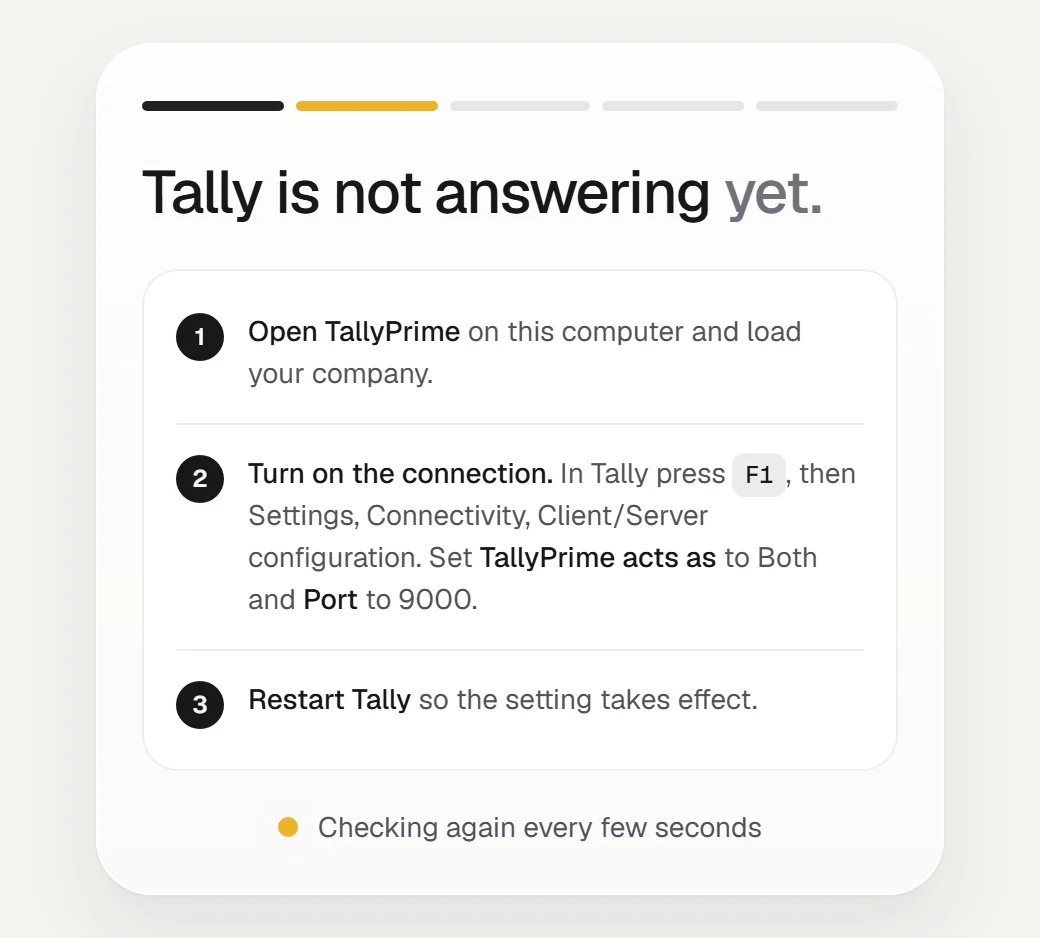
This means Tally is closed, or its connection is switched off. Do these in order:
- Open TallyPrime on this computer and load your company.
- Turn on the connection. In Tally press F1, then choose Settings, Connectivity, Client/Server configuration. Set TallyPrime acts as to Both and Port to 9000.
- Restart Tally so the setting takes effect.
You do not need to press anything in Extolly. It checks again every few seconds and carries on by itself as soon as Tally answers.
"Tally is open, but no company is loaded"
Open your company in Tally. Extolly continues on its own as soon as it is loaded.
Step 2: Choose your company
Extolly lists every company open in Tally, each with the date its books begin and the date of its last entry.
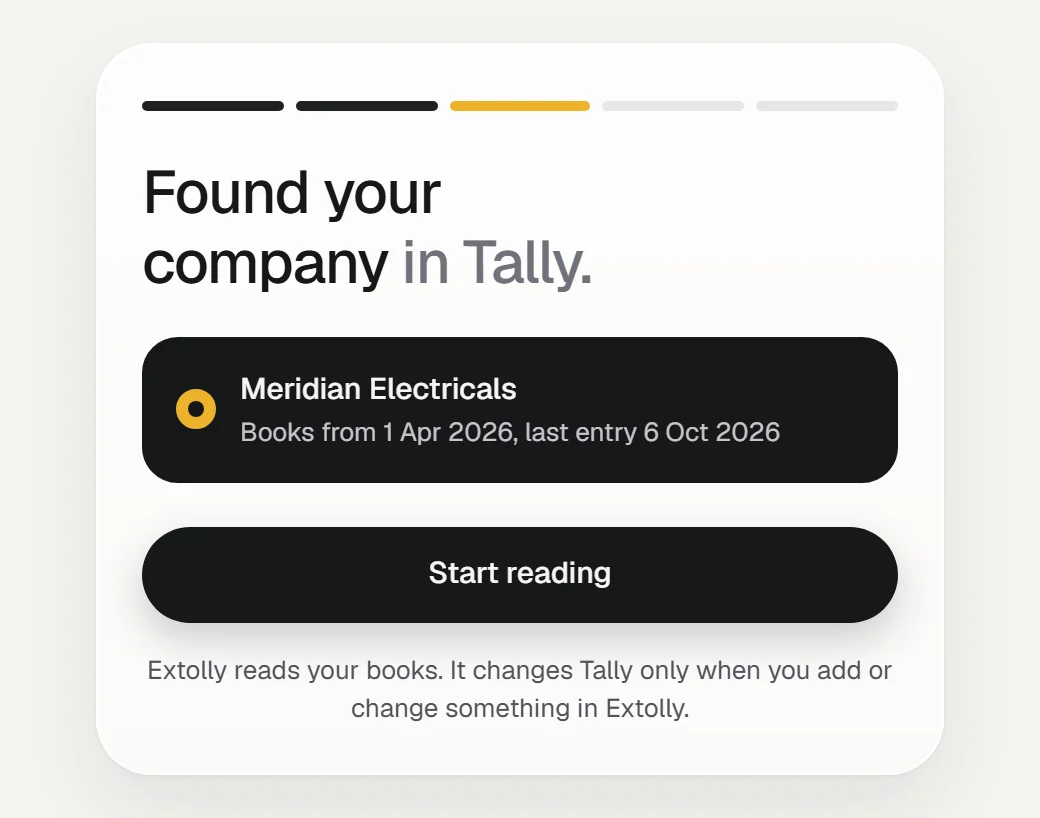
- With one company open, it is already selected. With several, tick each one you want. Each gets its own books, bills and reports.
- Press Start reading.
Step 3: The first read
Extolly reads your books in four stages and ticks each one off:
- Sales, purchases and other entries
- Ledgers and stock items
- Unpaid bills
- Checking every balance against Tally
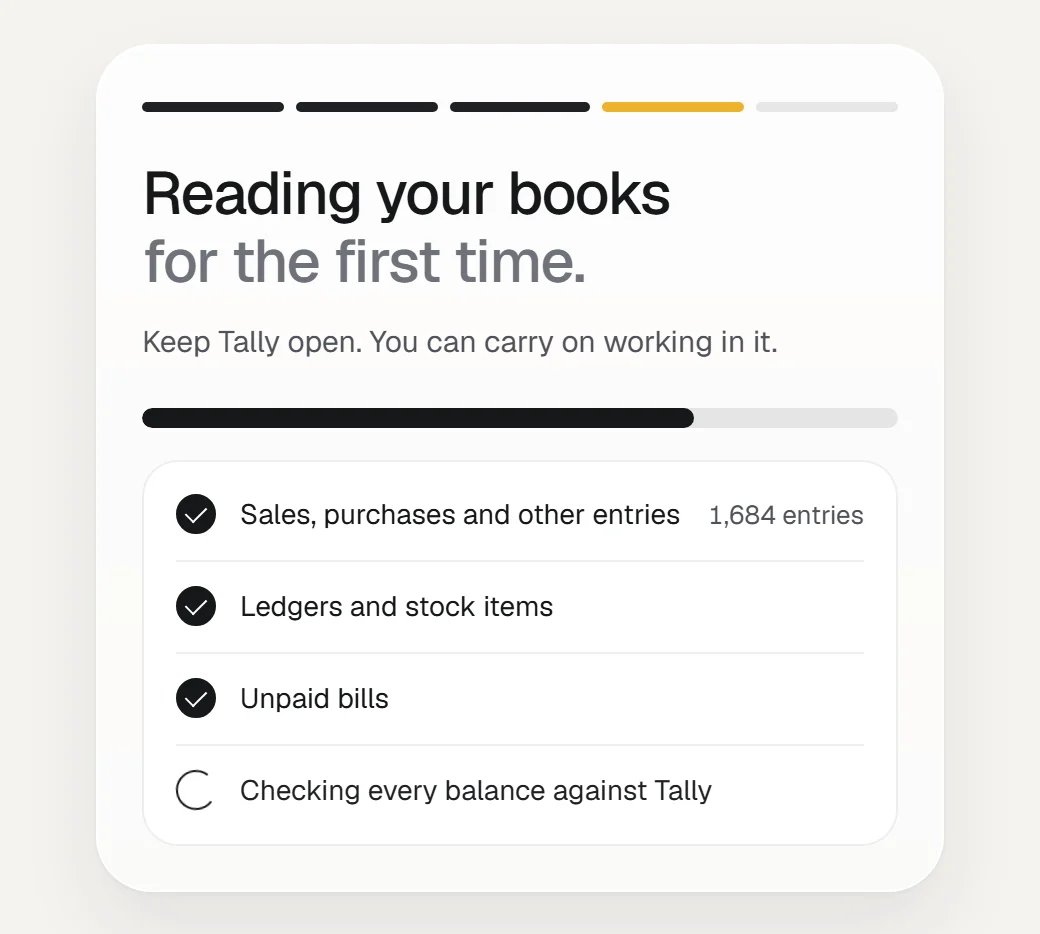
Keep Tally open while it reads. You can carry on working in Tally. A small business is usually read in well under a minute. Several years of entries take longer.
If you close Extolly's window part way, the reading carries on.
If the first read stops
The screen says The first read did not finish and gives the reason, most often that Tally was closed or the company was shut part way. Open Tally with the company loaded and press Try again.
Step 4: Done
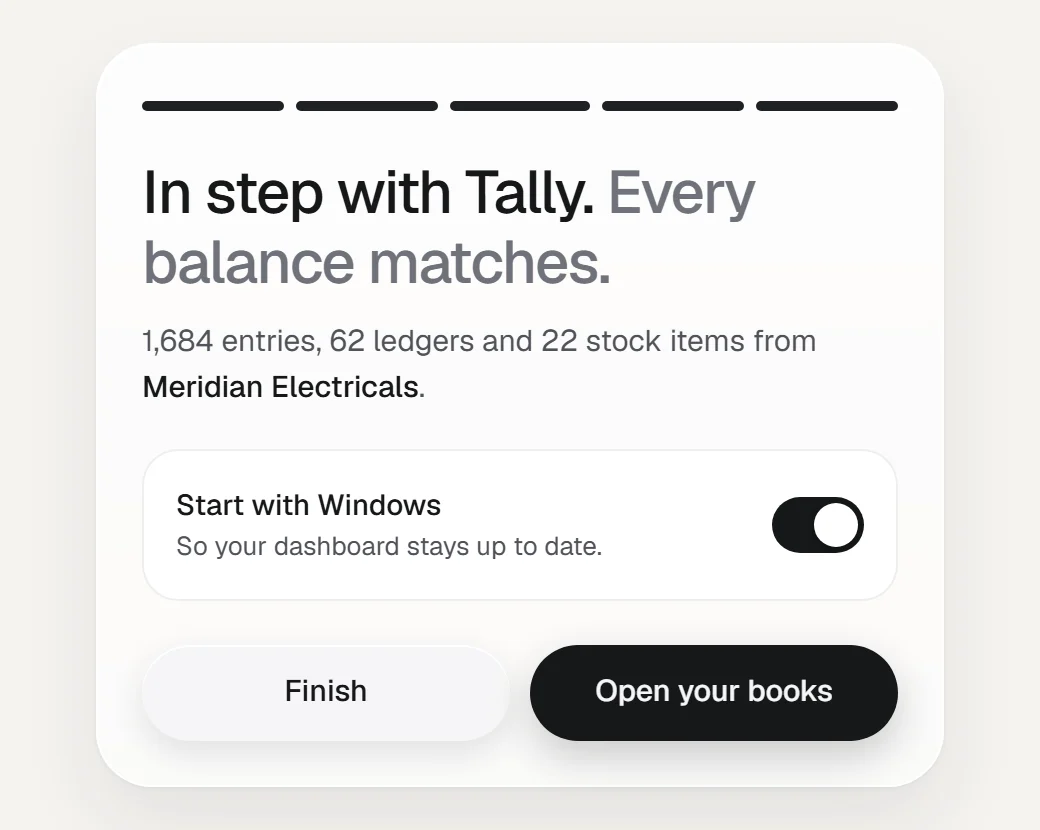
You will see one of two headings:
- In step with Tally. Every balance matches. Everything Extolly worked out agrees with Tally.
- Your books are read. A few balances differ. The books were read, but some balances worked out by Extolly are not the same as Tally's. They are listed in your dashboard under Data health, with what to do.
On this screen:
- Start with Windows is switched on. Leave it on so your dashboard stays up to date without you having to open Extolly each morning.
- Press Open your books to go to your dashboard, or Finish to see Extolly's own status screen.
Linking this computer to an account
Linking joins the computer to an Extolly account, so that your books open from your phone or any browser and each of your people signs in as themselves. It comes with Extolly on the web, which is not open yet. Everything on this computer works without it.
Once it is open, a copy of Extolly for Tally that can link starts set-up with one more step, Link this computer to your Extolly account, and offers the same thing later under Settings:
- Press Get a code. Extolly shows six characters.
- On your phone or in a browser, sign in to Extolly and open the link page it names.
- Type the six characters there, check the name of the computer, and agree.
Or press Not now and link later. Nothing needs setting up again.
Next
Open your books explains where the dashboard lives and how to get back to it.
Still stuck? Write to support@extolly.com and say which step you are on.