All guides
GuidesKeeping in step
Extolly on your phone
What works today, what arrives with Extolly cloud, and how adding Extolly to a home screen will work.
3 minute read
Where things stand
This guide says plainly what you can and cannot do today, so there are no surprises.
What works today
- The dashboard opens on the Tally computer, in Extolly's own window or in a browser on that computer at
localhost:4319. - Every screen is already built to fit a narrow window. Make the window narrow and you will see the phone layout: a bar along the bottom with Home, Bills, a round +, People and Insights.
- On that computer, Extolly can be installed as an app from the browser. See below.
What does not work yet
- Opening your books from a phone, a tablet, or another computer.
- Signing in on this website.
- Linking the computer to an account. Set-up does not ask for it yet.
localhost:4319 cannot be opened from a phone. It is an address that exists only inside the Tally computer.
What Extolly cloud will add
- Your books on your phone, wherever you are, with the Tally computer on or off.
- Sign in from any browser.
- Bills made on the phone. They are passed to your computer, which sends them into Tally and reports back.
The Windows app stays where it is and stays the only thing that reads and writes Tally. Nothing you set up now will need redoing.
Add Extolly to a home screen
Extolly can sit on a home screen and open like an app: full screen, with its own icon, with no store and nothing to download. The guide for it is built into the dashboard.
- Open the menu at the top right and choose Add to your home screen. On a wide screen, choose Install app at the foot of the rail.
- Choose iPhone, Android or Computer.
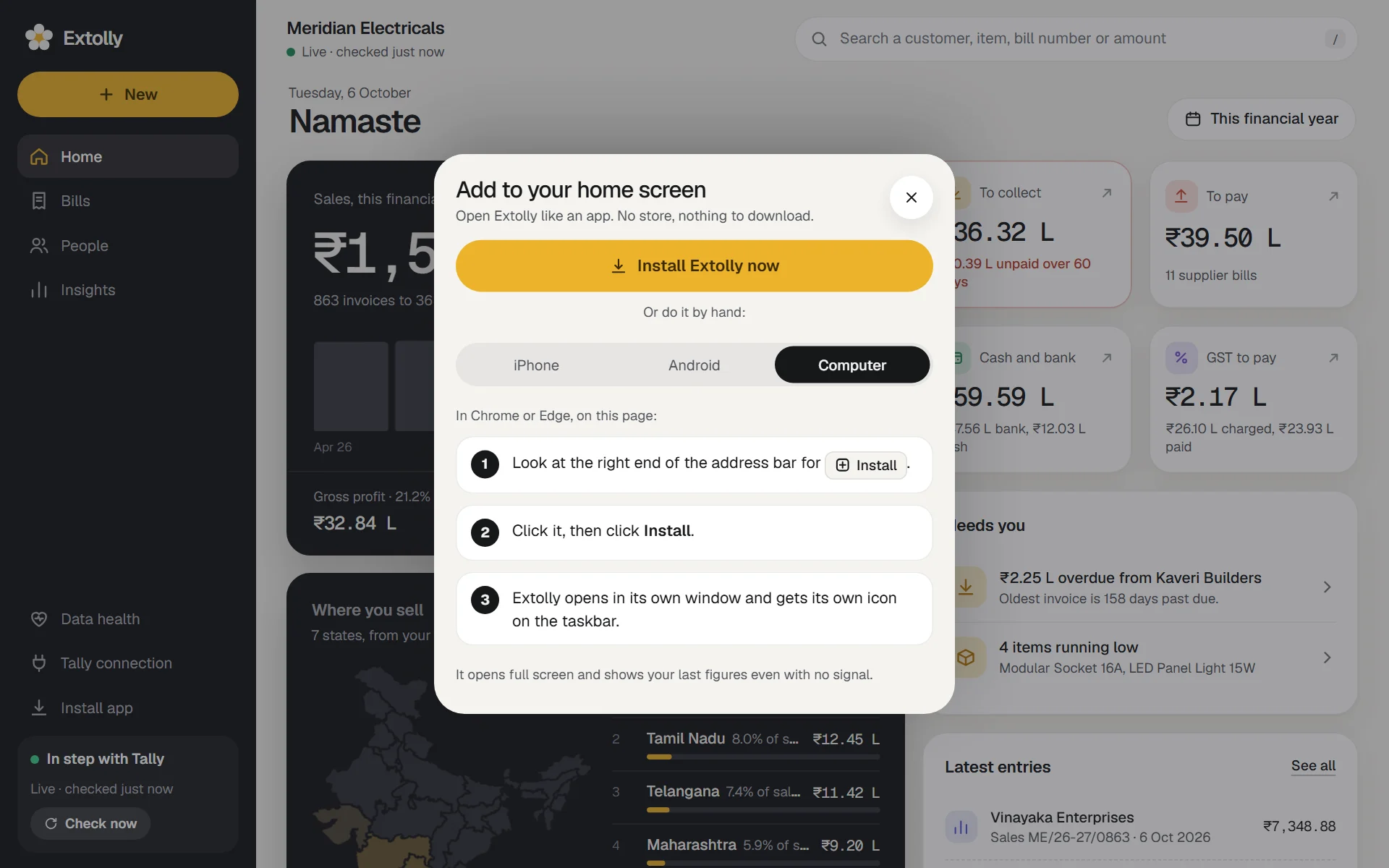
On a computer today: in Chrome or Edge, look at the right end of the address bar for Install. Click it, then click Install. Extolly opens in its own window and gets its own icon on the taskbar.
On a phone, once Extolly cloud is open:
| Phone | Steps |
|---|---|
| iPhone, in Safari | Tap Share at the bottom of the screen. Scroll down and tap Add to Home Screen. Tap Add |
| Android, in Chrome | Tap the three dots at the top right. Tap Add to Home screen or Install app. Tap Install |
The installed app opens on Home, and shows your last figures even with no signal, saying how old they are.
In the meantime
If you need your figures away from the Tally computer today, the practical options are:
- Download a report as a spreadsheet and send it to yourself. See Reports.
- Save a bill as a PDF and share it. See Bills.
Still stuck? Write to support@extolly.com and say which step you are on.